Change Password
This guide explains how to Change Password in the Loft App.
Watch The Video Tutorial
Steps to Change Password
-
Open the Loft App
-
Access Profile Settings
- Tap on the Profile icon located at the top-right corner of the screen.
- The Account screen will open.
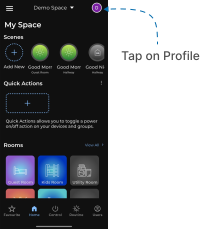
- Open Edit Profile
- Tap on Edit Profile, located next to your name at the top.
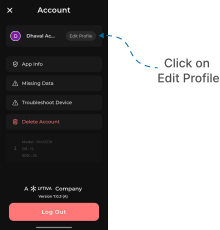
- Select Change Password
- In the Edit Profile screen, tap on Change Password located below.
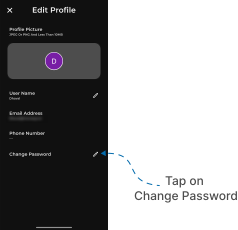
- Update Your Password
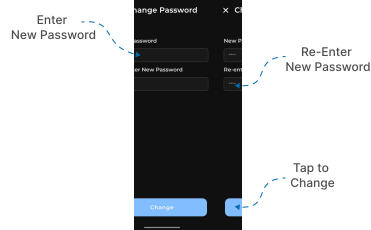
- Enter your new password in the first input field.
- Re-enter the same password in the second field for confirmation.
- Tap on Change to update your password.
Important Note
- The Change Password option is only available if you signed up using an email address.
- If you signed up using Phone, Google, or Apple, the Change Password option will not be shown.